AAD sync runs every 30 minutes, we are several situations where you cant wait 30 minutes for a change to sync across, you still want to force a sync. To do so, on the server which has AAD Connect installed and type the following to import the AAD Connect PowerShell module:
Import-Module ADSync
You check the current settings of the sync scheduler
Get-ADSyncScheduler
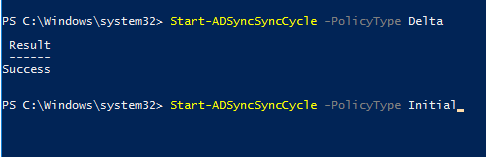
To force a delta sync, you the following PowerShell command:
Start-ADSyncSyncCycle -PolicyType Delta
If you want to force an initial (full) sync, use this command:
The below has been tested on exchange 2010 to export calendar permissions for mailboxes in a specific OU.
# Get the mailboxes $Mailboxes = get-mailbox -OrganizationalUnit “OU=Users,DC=Contoso,DC=local” -Filter {RecipientTypeDetails -eq “usermailbox”} -ResultSize Unlimited
# An array for the output $Output = @()
# Loop through the mailboxes ForEach ($Mailbox in $Mailboxes) { # Get the name of the calendar folder $Calendar = (($Mailbox.PrimarySmtpAddress.ToString())+ “:\” + (Get-MailboxFolderStatistics -Identity $Mailbox.DistinguishedName -FolderScope Calendar | Select-Object -First 1).Name)
# Get the permissions on the folder $Permissions = Get-MailboxFolderPermission -Identity $Calendar
# Loop through the permissions, populating the output array ForEach ($Permission in $Permissions) { $Permission | Add-Member -MemberType NoteProperty -Name “Mailbox” -value $Mailbox.DisplayName $Output = $Output + $Permission } }
# Write the output to a CSV file $Output | Select-Object Mailbox, User, {$_.AccessRights}, IsValid | Export-Csv -Path C:\temp\Calendarpermissions.csv -NoTypeInformation
Filtering to the specific OU is very useful if you are managing multi-tenant exchange environment. Modify the above script as per your needs and save as .ps1 to run on powershell.
Use the below to export mailbox statistics from exchange PowerShell. There are different commands which help you filter and manipulate the exported data.
The exported information is always useful during Office 365 migration to assess mailbox sizes and item counts, last login time and required bandwidth.
Export Mailbox size and statistics of all users get-mailbox -resultsize unlimited | get-mailboxstatistics | ft DisplayName,TotalItemSize,Itemcount | export-csv C:\temp\mailboxstatistics.csv Export Mailbox statistics for a specific OU (organizational unit)
In this example we use the where cmdlet to specify the search filter base. In the below example I am searching for users with specific email address, useful in a multi tenant environment.
Here I am trying to export mailbox statistics for specific set of users who have exchangekb as their email address suffix.
With the new Office 365 Message Encryption feature helps enable non-Office 365 recipients of protected emails to read and respond with ease, regardless of the device, app, service, or identity they use to receive their email. Yayy!! that is great no longer need to download software etc but now another challenge, when recipient see this message that the link will expire after 2 months –
Joe.bloggs@contoso.com has sent you a protected message.
Read the message
Any way or form to change the expiry of link is not available yet and perhaps by voting on Office365 Uservoice using the below link will get Microsoft to address this soon.
No outgoing Emails in Exchange 2013 fresh install , sent emails get stuck in Drafts folder in OWA,
Scenario: The problematic environment was a fresh install of exchange 2013, no migration and new mailboxes were created, but when emails were sent they got stuck in the drafts folder, OWA or outlook both failed sending emails. This is a 2012 environment, main DC and a member 2012 server, both being virtual and the server hosting exchange was a clone server.
Diagnosis: After enabling verbose logging on the default receive connector, the following error messages were seen in the SMTP recieve located here: C:\Program Files\MicrosoftExchange Server\V15\TransportRoles\Logs\Hub\ProtocolLogSmtpReceive\
X.X.X.X:2525,X.X.X.X:53103,>,421 4.3.2 Service not available,
after this checked the eventlogs showed a huge number of Kerberos related errors under System:
A Kerberos error message was received:
on logon session DOMAIN.LOCALExchangeservername$
Client Time:
Server Time: 0:35:49.0000 3/19/2014 Z Error Code: 0x6 KDC_ERR_C_PRINCIPAL_UNKNOWN
Checked to make sure all services are running and checking SPN are set correctly using the setspn commands:
setspn -L hostname
setspn -r AccountName
more details here: http://social.technet.microsoft.com/wiki/contents/articles/717.service-principal-names-spns-setspn-syntax-setspn-exe.aspx
Also checked to make sure correct DNS settings were used in the Exchange server under EAC=>Servers=>edit=>DNS lookups.
In my case both internal and external lookups were set to ” all network adapters ipv4″
Solution: Eventually it turned out to be the Security Policy setting wasnt enabled for Access this computer from the network Policy in Group Policy
The default domain policy was applied to the OU where the Exchange 2013 server was, hence updated default domain policy: so open Group Policy Editor and go to
Computer Configuration\Windows Settings\Security Settings\Local Policies\User Rights Assignment\
Put a tick on Define these policy settings and add the default groups as per : http://technet.microsoft.com/en-us/library/cc740196(v=ws.10).aspx
Administrators
Backup Operators
Users
Everyone
Please note this is a 2012 server and for some reason there are no power users as per the article.
Did a gpupdate /force on DC and exchange and reboot exchange services and voila all stuck emails were going out one at a time.
At this point in time the kerberos errors are still being generated, I still need to fix this…more soon.
I ran into this problem after doing a successful recovery of server which failed miserably. Was able to ping and RDP was enabled and listening on the right port number etc, but kept getting the error when trying to RDP into the 2003 server.
“The client could not connect to the remote computer. Remote connections might not be enabled or the computer might be too busy to accept new connections. It is also possible that network problems are preventing your connection.”
The Resolution:
To resolve the problem make sure that the correct network adapter is bound to RDP-TCP connection. To do this, follow these steps:
1. On the server, logon to the server locally (not using Remote Desktop/Terminal Client).
2. Click Start, Run, type “tscc.msc /s” (without qutation marks and click OK.
3. In the Terminal Services Configuration snap-in double-click Connections, then RDP-Tcp in the right pane.
4. Click the Network Adapter tab, select the correct network adapter and click OK.
5. Make sure that you can establish an RDP connection to the server.
Alternative resolution steps.
Use these steps only if you can not perform local logon to the affected server. WARNING: Using Registry Editor incorrectly may cause serious problems that may require you to reinstall your operating system. Use Registry Editor at your own risk and only after making backup of full Registry and the keys you are going to change. Please see More Information section for registry backup and restore information.
1. Start Registry Editor (Regedt32.exe).
2. Click File\Connect network Registry. Enter computer name or IP address and click OK. Firewalls between your computer and the affected server may prevent successfull connection. Remote Registry service should be running on the server.
3. Navigate to the following registry key (path may wrap):
HKEY_LOCAL_MACHINE\SYSTEM\CurrentControlSet\Control\Network\{4D36E972-E325-11CE-BFC1-08002BE10318}
4. Under this key are one or more keys for the globally unique identifiers (GUIDs) corresponding to the installed LAN connections. Each of these GUID keys has a Connection subkey. Open each of the GUID\Connection keys and look for the Name value. Choose the connection you want Terminal Services to use.
5. When you have found the GUID\Connection key that contains the Name setting that matches the name of your LAN connection, write down or otherwise note the GUID value.
6. Then navigate to the following key:
HKEY_LOCAL_MACHINE\SYSTEM\CurrentControlSet\Control\Terminal Server\lanatable. Using the GUID you noted in step 5 select subkey. Note it’s LanaId.
7. Navigate to the following value:
HKEY_LOCAL_MACHINE\SYSTEM\CurrentControlSet\Control\Terminal Server\WinStations\RDP-Tcp\LanAdapter. Change it’s data to the value you noted in step 6. If you want RDP to listen on all LAN adapters enter value of 0.
Recently bumped into problem where an exchange 2010 server was running low in disk space on the C drive. After checking all aspects like exchange database location, log files, shadow copies and page file, in the end it was the C:\Windows\temp folder, there were a bunch of tmp files with the name nsebin.def files similar to below but too many in numbers
This problem is due to a recent bug on the Norman Scan Engine update which surfaced around 25/4/2013 following which older nsebin.def files weren’t removed and hence the build up. One can certainly imagine what this might do to a 40Gb System drive partition as each of these of files were around 320Mb and downloaded twice a day if you have forefront downloading automatically for you.
The solution as of now is to delete the nsebin.def files as and when you get low on space, there is no need to restart any services for this, just get in there and DELETE, do not delete the nse_temp files.
As there is no fix yet, as suggest on the post, disable the Norma Scan engine and update schedules as below in Forefront:
Disable Norman Scan engine and update schedule
One has also suggested rebuilding the Norman Engine folder to get Forefront to automatically fix this, but this hasnt worked for me, but you are welcome to try.
Rebuild Norman Engine Folder:
To do this locate the Norman folder C:\Program Files (x86)\Microsoft Forefront Protection for Exchange Server\Data\Engines\x86\Norman or on a different drive where you installed forefront and rename the folder to Norman.old
Rename Norman folder
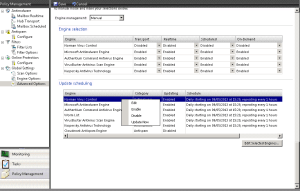
Once done renaming, open the forefront console and force an update by going to Policy Management > Global Settings > Advanced Options > Update Scheduling section, right click the Norman engine there and select update now.
Update norman engine
You should now see a new Norman folder created, but the problem is the old def files are still there.
MS is still working on this and I will update this post when I find out that my problem has been fixed.
update 13/5/13: Still nothing from MS, I have left Norman scan engine and update schedule disabled.
update: 15/5/13: MS have released a fix, if you have disabled the scheduled update, enable it.
After installing Cisco VPN Client Windows 8 64Bit you get the error reason 442: failed to enable virtual adapter when trying to connect.
Solution:
Open regedit
Browse to the Registry Key HKEY_LOCAL_MACHINE\\SYSTEM\\CurrentControlSet\\Services\\CVirtA
Select the DisplayName to modify, and remove the leading characters from the value data up to the last “%;”
for 64 bit; change the value data from something like “@oem8.inf,%CVirtA_Desc%;Cisco Systems VPN Adapter for 64-bit Windows” to “Cisco Systems VPN Adapter for 64-bit Windows”
for 32bit; change the value data from something like “@oem8.inf,%CVirtA_Desc%;Cisco Systems VPN Adapter” to “Cisco Systems VPN Adapter”
Reboot to test, the above solution worked for me on Cisco client version 5.0.0.07.0240 64bit.
This error encouuntered on a windows 7 computer which was never updated. Clicking the option to Get help with this error and then run the Microsoft Fixit doesnt seem to help.
The issue was due to DNS on the client computer pointing at the default gateway for DNS, switching to one of the public DNS fixed the problem, changed DNS to google public dns 8.8.8.8 and 8.8.4.4 got the updates working again.
Windows could not start the Print Spooler service on Local Computer.Error 1053: The service did not respond to the start or control request in a timely fashion.
This could also few other services like Mcafee agent in my case.
Cause:
The ServiceBase class calls the OnStop method directly from the Service command handler that is defined in the ScDispatcherLoop of the Advapi32.dll file. After 30 seconds, if the ScDispatcherLoop thread is not ready to receive a new service command from the service control manager, Windows Service Controller marks the service as “time out.” Therefore, you receive this error message.
Solution: http://support.microsoft.com/kb/839174
If you have the latest .Net framework, simply download the .Net web installer and run the repair install.