Comparing the Free Forever Tiers in Azure, GCP, AWS, and OCI…and the winner is OCI!

Understanding the perpetual free offerings of major cloud providers

The cloud computing landscape is dominated by a few key players, each offering a range of services to cater to diverse needs. Among these giants, Microsoft Azure, Google Cloud Platform (GCP), Amazon Web Services (AWS), and Oracle Cloud Infrastructure (OCI) stand out. One of the most compelling reasons for individuals and businesses to explore these platforms is the availability of free forever tiers. These free tiers provide an opportunity to experiment, develop, and even deploy applications without incurring significant costs. In this blog, we will delve into and compare the free forever tier offerings of Azure, GCP, AWS, and OCI.

Microsoft Azure

Microsoft Azure offers several services that remain free forever. These always free services include:

  • Azure Functions: 1 million requests per month
  • File Storage: 5 GB of LRS (Locally Redundant Storage)
  • SQL Database: 250 GB of storage

Google Cloud Platform (GCP)

Google Cloud Platform provides a variety of services that are always free, which include:

  • Compute Engine: 1 f1-micro instance per month in select regions
  • Cloud Storage: 5 GB of Regional Storage
  • Network Egress: 1 GB from North America to all regions

Amazon Web Services (AWS)

Amazon Web Services offers an extensive array of services that are perpetually free. These always free services include:

  • AWS Lambda: 1 million requests per month
  • DynamoDB: 1 GB of storage
  • Glacier: 25 GB of data retrievals

Oracle Cloud Infrastructure (OCI)

Oracle Cloud Infrastructure provides several services that are free forever, including:

  • Autonomous Database: 2 instances with Oracle APEX
  • Compute VMs: 2 AMD-based virtual machines
  • Data Transfer: 10 TB outbound per month

Comparison and Conclusion

When comparing the free forever tiers of Azure, GCP, AWS, and OCI, several key points stand out:

  • Service variety: Each provider offers a range of services under their always free tier, from computing instances to storage and databases. AWS tends to have one of the most extensive always free offerings, while OCI provides substantial data transfer and compute options.
  • Use case suitability: Depending on your needs—whether it’s running virtual machines, exploring database options, or experimenting with cloud functions—you might find one provider’s free tier more suitable than the others. For instance, AWS is excellent for those needing a broad range of services, while OCI provides substantial data transfer and compute options.

In conclusion, the choice of a cloud provider’s free forever tier should align with your specific requirements and future scalability plans. Each provider—Azure, GCP, AWS, and OCI—brings unique strengths to the table, making it essential to analyze which free tier best fits your project needs.

Whether you’re a developer, a small business, or a large enterprise, leveraging these free forever tiers can provide a cost-effective way to innovate and grow in the cloud.

The final verdict with a lead of 2 free VMs for life on its free forever tier, OCI takes the crown.

Set Microsoft Edge as the default browser via GPO

You can set Microsoft Edge as the default browser on domain-joined devices by configuring the Set a default associations configuration file via group policy.

Turning this group policy on requires you to create and store a default associations configuration file in XML format. This file is stored locally or on a network share. Copy below XML content to a file name Edge.xml and store in a central share accessible by all domain joined resources.

XML
<?xml version="1.0" encoding="UTF-8"?>
<DefaultAssociations> 
  <Association ApplicationName="Microsoft Edge" ProgId="MSEdgeHTM" Identifier=".html"/>
  <Association ApplicationName="Microsoft Edge" ProgId="MSEdgeHTM" Identifier=".htm"/>
  <Association ApplicationName="Microsoft Edge" ProgId="MSEdgeHTM" Identifier="http"/>
  <Association ApplicationName="Microsoft Edge" ProgId="MSEdgeHTM" Identifier="https"/>  
  <Association ApplicationName="Microsoft Edge" ProgId="MSEdgePDF" Identifier=".pdf"/>
</DefaultAssociations>

note: If you dont want to associate Edge to open PDF files, edit this xml file and remove the line “<Association ApplicationName=”Microsoft Edge” ProgId=”MSEdgePDF” Identifier=”.pdf”/>”

Configure the GPO  for a default file type and protocol associations configuration file:
  1. Open the Group Policy editor and go to the Computer Configuration\Administrative Templates\Windows Components\File Explorer.
  2. Select Set a default associations configuration file.
  3. Click policy setting, and then click Enabled.
  4. Under Options:, type the location to your default associations configuration file.
  5. Click OK to save the policy settings.
  6. Ensure this GPO is linked to the OU where all devices are
  7. The GPO will be processed the next time the user logs in

The example in the next screenshot shows an associations file named Edge.xml on a network share that is accessible from the target device on \\APP1\Users\testadmin\Documents\Edge.xml

Restrict Users From Creating New Teams in Microsoft Teams

If you have recently adopted the usage for Microsoft Teams, managing Teams within Teams becomes a toungue twister in itself, If you’re concerned about users creating teams or groups that don’t comply with your business standards, perhaps you want this to be delegated to set of mindful power users group.

  1. Create a Group – This could be a Active Directory Synced group or M365 group
  2. Install AzureAD Public Preview – AzureAD PowerShell Module.
  3. Run the below script, replace the value of “<GroupName>” with the name of the group you have created, enter the administrator credentials when prompted
$GroupName = "<GroupName>"
$AllowGroupCreation = $False

Connect-AzureAD

$settingsObjectID = (Get-AzureADDirectorySetting | Where-object -Property Displayname -Value "Group.Unified" -EQ).id
if(!$settingsObjectID)
{
    $template = Get-AzureADDirectorySettingTemplate | Where-object {$_.displayname -eq "group.unified"}
    $settingsCopy = $template.CreateDirectorySetting()
    New-AzureADDirectorySetting -DirectorySetting $settingsCopy
    $settingsObjectID = (Get-AzureADDirectorySetting | Where-object -Property Displayname -Value "Group.Unified" -EQ).id
}

$settingsCopy = Get-AzureADDirectorySetting -Id $settingsObjectID
$settingsCopy["EnableGroupCreation"] = $AllowGroupCreation

if($GroupName)
{
  $settingsCopy["GroupCreationAllowedGroupId"] = (Get-AzureADGroup -SearchString $GroupName).objectid
} else {
$settingsCopy["GroupCreationAllowedGroupId"] = $GroupName
}
Set-AzureADDirectorySetting -Id $settingsObjectID -DirectorySetting $settingsCopy

(Get-AzureADDirectorySetting -Id $settingsObjectID).Values

reference: https://docs.microsoft.com/en-us/microsoft-365/solutions/manage-creation-of-groups?view=o365-worldwide

Microsoft Admin Portals

Microsoft 365 Admin Portals

Portal NameURL
Microsoft 365 Admin Portalhttps://admin.microsoft.com/ 
Microsoft 365 Compliancehttps://compliance.microsoft.com/
Microsoft Endpoint Manager Admin Consolehttps://endpoint.microsoft.com/
Microsoft Endpoint Manager Admin Console (old)https://devicemanagement.portal.azure.com/
Exchange Admin Center (new)https://admin.exchange.microsoft.com/
Exchange Admin Center (old)https://outlook.office365.com/ecp/
Microsoft Teams Admin Centerhttps://admin.teams.microsoft.com/ 
SharePoint Admin Centerhttps://admin.microsoft.com/sharepoint
OneDrive Admin Centerhttps://admin.onedrive.com/
Apps Admin Centerhttps://config.office.com/officeSettings#
Power BI Admin Portalhttps://app.powerbi.com/admin-portal/usageMetrics?noSignUpCheck=1
Power Platform admin centerhttps://admin.powerplatform.microsoft.com/
Microsoft Stream Admin Centerhttps://web.microsoftstream.com/admin
Skype for Business admin center (deprecated)https://webdir2a.online.lync.com/LSCP
Kaizala Management Portalhttps://manage.kaiza.la/
Yammer Adminhttps://www.yammer.com/office365/admin
Microsoft Store for Businesshttps://businessstore.microsoft.com/
Microsoft Store for Educationhttps://educationstore.microsoft.com/
Microsoft Partner Centerhttps://partner.microsoft.com/dashboard
Microsoft Remote Connectivity Analyzerhttps://testconnectivity.microsoft.com
Microsoft 365 network connectivity testhttps://connectivity.office.com/
Microsoft Call Quality Dashboardhttps://cqd.teams.microsoft.com/

Azure IT Admin Portals

Portal NameURL
Microsoft Azure Portalhttps://portal.azure.com/ 
Microsoft Azure (Release Candidate)https://rc.portal.azure.com/
Microsoft Azure (Preview)https://preview.portal.azure.com/
Azure Resource Explorerhttps://resources.azure.com/
Azure Cloud Shellhttps://shell.azure.com/
Azure Active Directory admin centerhttps://aad.portal.azure.com/
Azure Cosmos DBhttps://cosmos.azure.com/
Azure Data Factoryhttps://adf.azure.com/
Azure Cognitive Services Custom Translatorhttps://portal.customtranslator.azure.ai/
Azure Non-profit Portalhttps://nonprofit.microsoft.com/#/ngoportal
Portal NameURL
Azure Security Centerhttps://portal.azure.com…

Microsoft Licensing/Support Portals

Portal NameURL
Volume Licensing Service Centerhttps://www.microsoft.com/Licensing/servicecenter/
Next Generation Volume Licensinghttps://businessaccount.microsoft.com/
Microsoft Azure Enterprise Portalhttps://ea.azure.com/
Microsoft Services Hubhttps://serviceshub.microsoft.com/
Microsoft License Advisorhttps://mla.microsoft.com/
Microsoft Partner Centerhttps://partner.microsoft.com/
Azure Subscriptionshttps://account.azure.com/Subscriptions

Security / Defender IT Admin Portals

Portal NameURL
Microsoft Cloud App Securityhttps://portal.cloudappsecurity.com/
Microsoft Defender for Endpoints
(Previously Defender ATP)
https://securitycenter.windows.com/
Microsoft 365 Defenderhttps://security.microsoft.com/
Office 365 Security & Compliancehttps://protection.office.com/
Microsoft Defender for Identity
(Previously Azure ATP)
https://portal.atp.azure.com/
Multi-factor authenticationhttps://account.activedirectory.windowsazure.com…

Developer Portals

Portal NameURL
Graph Explorerhttps://developer.microsoft.com/en-us/graph/graph-explorer 
Azure DevOpshttps://dev.azure.com/
Visual Studio Subscriptionshttps://my.visualstudio.com/
Visual Studio Subscriptions Managementhttps://manage.visualstudio.com/
Adaptive Cardshttps://adaptivecards.io/

Other Useful Microsoft Portals

Portal NameURL
Office 365 Anti-Spam IP Delist Portalhttps://sender.office.com/
Azure Statushttps://status.azure.com/
Azure DevOps Statushttps://status.dev.azure.com/
Windows Virtual Desktop Consent Pagehttps://rdweb.wvd.microsoft.com/
Customer Digital Experienceshttp://demos.microsoft.com/
Group Policy Searchhttps://gpsearch.azurewebsites.net/
Microsoft Startupshttps://portal.startups.microsoft.com/
Office UI Fabric Iconshttps://uifabricicons.azurewebsites.net/ 
Become Microsoft Certifiedhttps://query.prod.cms.rt.microsoft.com… 
Tech Community Video Hubhttps://techcommunity.microsoft.com/t5/video-hub/ct-p/VideoHub 
Microsoft Azure Sponsorshipshttps://www.microsoftazuresponsorships.com/
Microsoft Dynamics Lifecycle Serviceshttps://lcs.dynamics.com/
Microsoft MVPhttps://mvp.microsoft.com/
Portal NameURL
What is my Microsoft Azure and Office 365 tenant ID?https://www.whatismytenantid.com/
Office 365 ATP Safe Links Decoderhttps://o365atp.com/
Message Header Analyzerhttps://mha.azurewebsites.net/
Tenant Availability Checkhttps://o365.rocks/

Reference: https://msportals.xyz/

Block File Sharing in Teams

COVID-19 has led many IT Departments scrambling to roll out some form of conference/ collaboration tool as many had to work remotely. This has affected organizations that where were not agile or cloud agnostic by not adopting to modern workplace earlier on.

Microsoft Teams runs on SharePoint Online, OneDrive in its core, organizations running on-premises compliance/DLP solutions will find it hard to put in controls for data in the cloud, not being an early adopter, and having to enable collaboration tools such as Microsoft Teams is a daunting task when you want to protect the organizational data from going walkabouts. If your organization is one of those, which is like a cat on the wall – how do we do it?

Block File sharing in Teams by:

1. Not assigning a SharePoint Online license for End-users

2. Not creating a Teams or Channels, if you do….

3. Create Teams for your organization but remove the Teams members from having EDIT permission on the Teams SharePoint Site.

4. Additionally if the tenant has Microsoft Cloud App Security enabled – create a session based conditional policy, which blocks upload and download of files in Teams and SharePoint Online.

SharePoint Online License – by not assigning this you deprive the end users from accessing OneDrive for business, which is primary storage for file sharing when it comes to 1-1 and group chats.

Creating a Team – when a team is created with members, this creates a SharePoint online site, which by default allows members to have edit permission on the site. By removing the EDIT permission from the Team site leaves members with only read permission leaving only the owner of the Team/SharePoint site full permission, no just do not assign or delegate the owner permission to a regular user.

Microsoft Cloud App Security – is a Microsoft CASB solution (Cloud Access Security Broker) acts as a reverse proxy. A session based conditional policy can be configured to prevent file uploads/downloads in Teams/Sharepoint site, caveat this only works when accessing them via Web but not through desktop client, hence the above point – remove EDIT permission for Team members. MCAS gives you an insight and alert when someone does indeed try to upload a file as it will block and alert the admin.

Now that you have control of filesharing and enabled Microsoft Teams, start strategic roll out of cloud solutions for DLP, Information protection and governance, classification – all of this is available via Microsoft 365 through Azure Information Protection, DLP, Azure and Defender ATP which can scan and classify your organization data automatically based on data sensitivity you can control.

Licenses could not be assigned or removed due to an error -Azure AD group based licenses

Scenario: Group based licensing is enabled in Azure AD. Exchange online is not assigned through the group based licensed. Newly added users to the group fail to get licenses assigned via the group. Reprocessing the group based license throws error:

Licenses could not be assigned or removed due to an error

Solution: A recent service plan backfilled by the O365 Commerce Team into the Office and Microsoft SKUs Microsoft Bookings a has been added as Enabled on all the licenses. This service plan has a dependency on Exchange Online (Plan 1) or Exchange Online (Plan2).

Disabling the Microsoft Bookings service plan in the affected groups should resolve the licensing error.

Kill all active user sessions in any Azure AD/ Office 365 application

If you are are ever in a situation where you have to deal with a compromised O365 account or situation similar to mine where users were assigned Onedrive/SPO license and you want to revoke them and stop users from using them immediately, the below cmdlet is much helpful.

If you are dealing with a large group of users, you may tire your fingers clicking on “initiate sign-out” or better get all members of the group and use cmdlet Revoke-AzureADUserAllRefreshToken which invalidates the refresh tokens issued to applications for a user. The cmdlet also invalidates tokens issued to session cookies in a browser for the user. The cmdlet operates by resetting the refreshTokensValidFromDateTime user property to the current date and time.

Get the group objectid

Get-MsolGroup [groupname] | fl ObjectId

Next, export the users of the group to a csv

Get-MsolGroupMember -GroupObjectId xxxxx-xxxxx-xxxxx-xxxxx | Select-Object EmailAddress | Export-Csv -Path c:\temp\users.csv

Import the csv and revoke th refresh token for these users.

Import-CSV “c:\temp\users.csv” | % {Get-AzureADUser -SearchString $_.emailaddress | Revoke-AzureADUserAllRefreshToken}

Add Fullmailbox Permission in PowerShell using a CSV file

Create a CSV with following fields and save it in a temp folder

UserMailbox and User

copy the below and save as .ps1 file in the same temp folder e.g C:\temp

$csv = Import-csv -path “C:\temp\fullaccess.csv”
foreach($User in $csv)
{
Add-MailboxPermission -Identity $user.UserMailbox -User $user.User -AccessRights FullAccess -InheritanceType All
}


Run the script to apply permissions

Force a sync from Azure AD Connect to Office 365

AAD sync runs every 30 minutes, we are several situations where you cant wait 30 minutes for a change to sync across, you still want to force a sync. To do so, on the server which has AAD Connect installed and type the following to import the AAD Connect PowerShell module:

Import-Module ADSync

You check the current settings of the sync scheduler

Get-ADSyncScheduler

adsync01

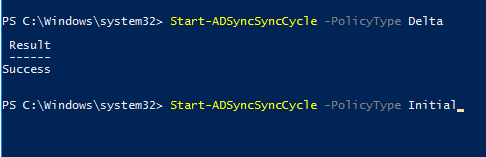
To force a delta sync, you the following PowerShell command:

Start-ADSyncSyncCycle -PolicyType Delta

adsync02

If you want to force an initial (full) sync, use this command:

Start-ADSyncSyncCycle -PolicyType Initial